DonChong.Top
I built this site to deepen my understanding of modern frontend technologies. My previous experience with front-end development was still rooted in the jQuery era, so this project became a way to explore today’s tools and best practices.
More importantly, I wanted a space that reflects my genuine effort and personality. In an age where AI-generated resumes, cover letters, and blog posts are everywhere, I believe content created with real thought and effort stands out more than ever. And that might catch someone's eye.
While I may still be a junior programmer, this site represents what I’ve learned and the journey I’ve taken so far. I hope it provides you with a clearer understanding of my skills, mindset, and who I am, and helps you determine whether I might be a good fit for your team.
Highlights
Technical Summery:
- Built with Next.js and Tailwind CSS
- Running on Oracle Cloud, VM.Standard.A1.Flex, Ubuntu 22.04.4 LTS
- CI/CD with Github Action
- Domain from Name Silo, managed by Cloudflare
- Proxied by Cloudflare, providing SSL/TSL, DDoS protection, caching, etc.
Theme
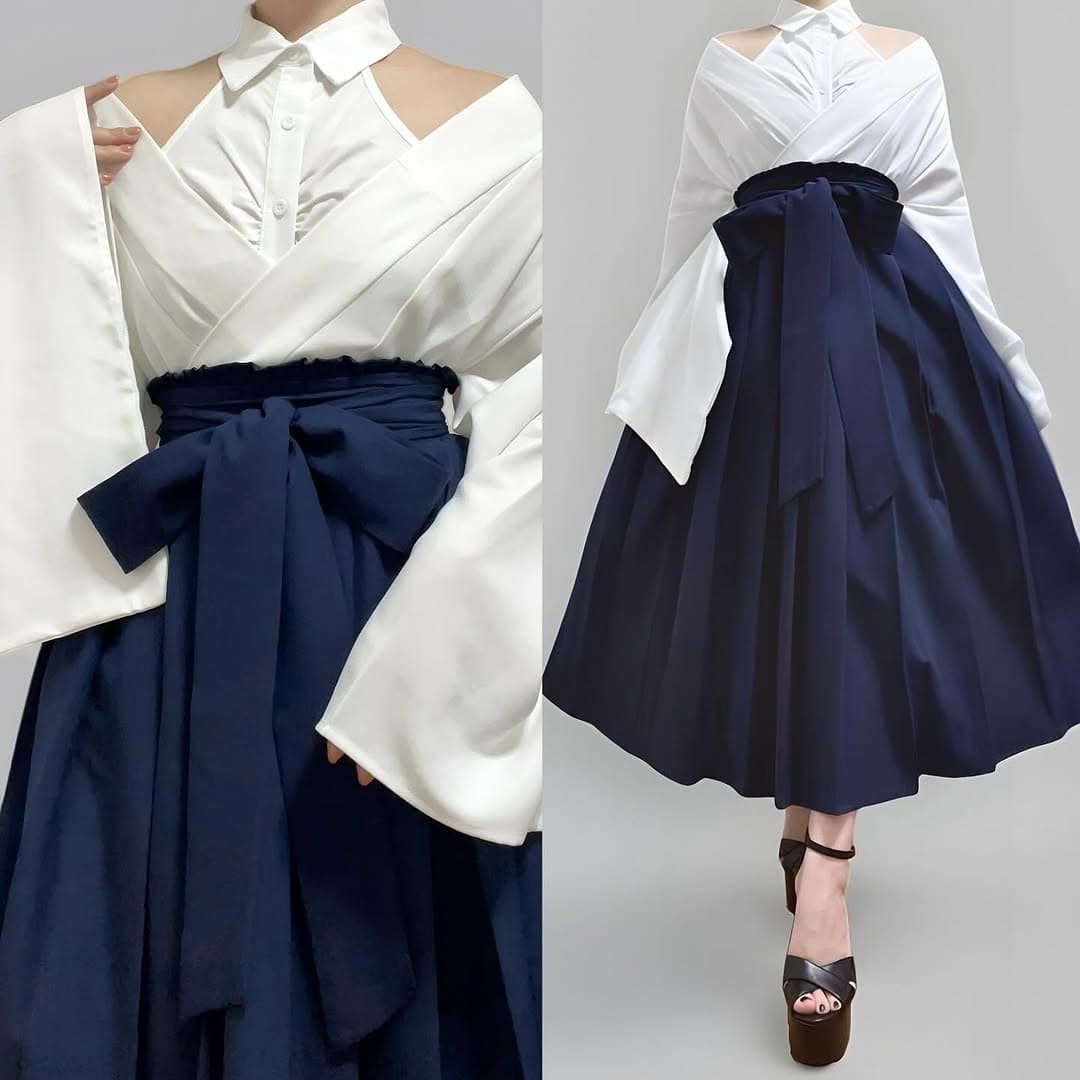
The colors are from a random picture that caught my eyes. I use the tinted gray and deep blue as the main color, and keep to color as clean as possible.
Logo
The logo's initial design was not intended to have a specific meaning, yet the simple block shape resonated with my aesthetic preference. It has since taken on the meaning of building blocks, symbolizing my process of creating projects and playing Minecraft block by block.
The logo began as a simple letter 'D' and evolved into its current form. The font is a modification of Abril Fatface. I adjusted the 'N' character to give the wordmark a more stable and balanced overall appearance.
Interface:
Based on Tailwind CSS’s Protocol template, I customized the navigation bar and added a table of contents to fit my needs better. The original navigation also served as a table of contents, which works well for documentation sites. However, I redesigned it into a two-layer navigation system to better organize different topics and projects. To complement the lack of a table of contents, I referenced OpenAI’s documentation design and built a matching two-layer table of contents to fill the gap.
| Nav | TOC |
|---|---|
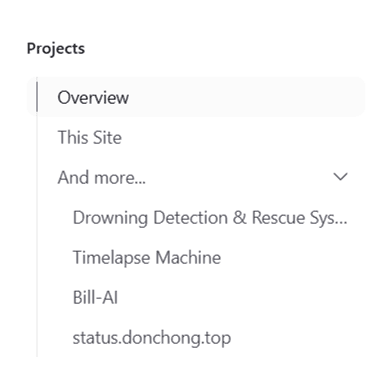 | 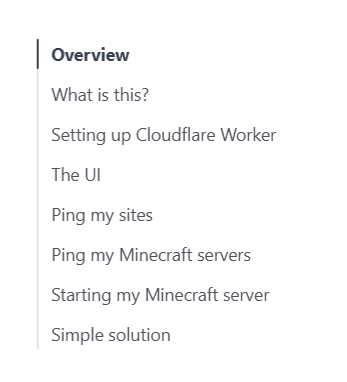 |
Image Optimaztion:
This site uses next/image to improve loading performance and display a blurred preview while images load, which eliminates any layout shift. It also supports Obsidian-style image syntax ![[]] through a custom Remark plugin.
CI/CD
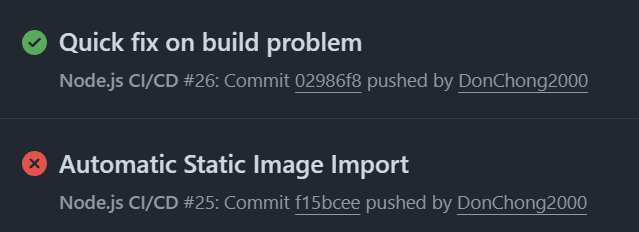
This site uses a simple CI/CD pipeline powered by GitHub Actions. Whenever I push changes to the repository, the host automatically builds and restarts the server. This ensures the site stays up to date and helps me catch issues immediately.
Building My Site
My personal site is built with Tailwind CSS, a framework used by companies like OpenAI, Shopify, Google I/O, and even NASA. It provides a solid foundation for modern web design, with built-in design guardrails and numerous components that help me create a polished site without needing an art degree.
Front End
Years ago, I thought my work had to be entirely original—that copying others was almost a sin. Over time, I realized that good artists often start by imitating great work and borrowing ideas. So I studied other websites and reshaped what I learned to fit my own needs.
Theme
I’ve never been good at art, so picking a theme for my site was kind of a struggle. Then I saw this ad on Instagram that just looked really clean and elegant. The slight tint in the white gave it this silky vibe that felt grand.
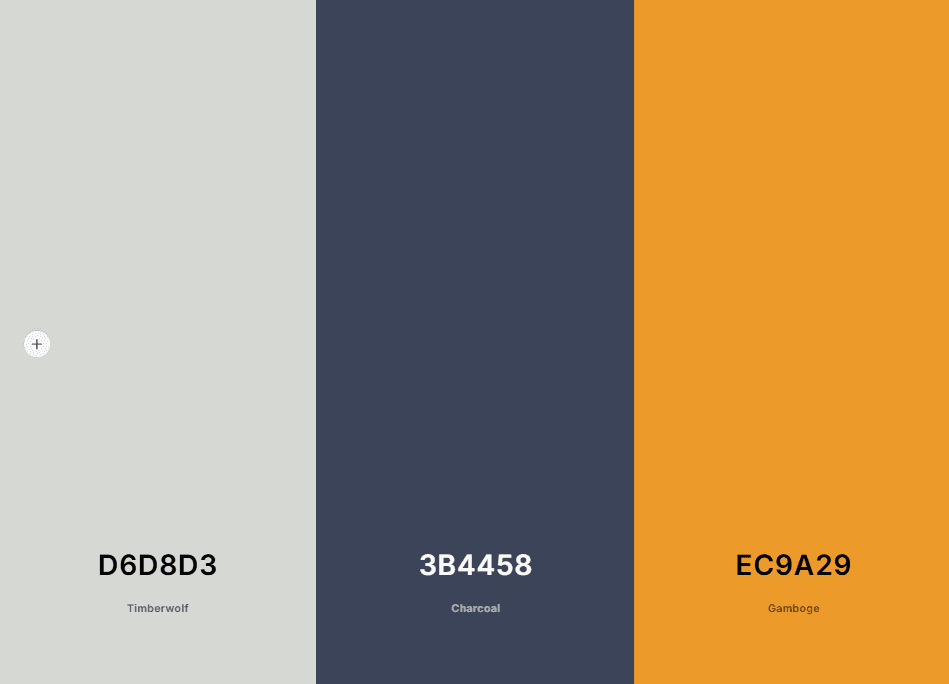
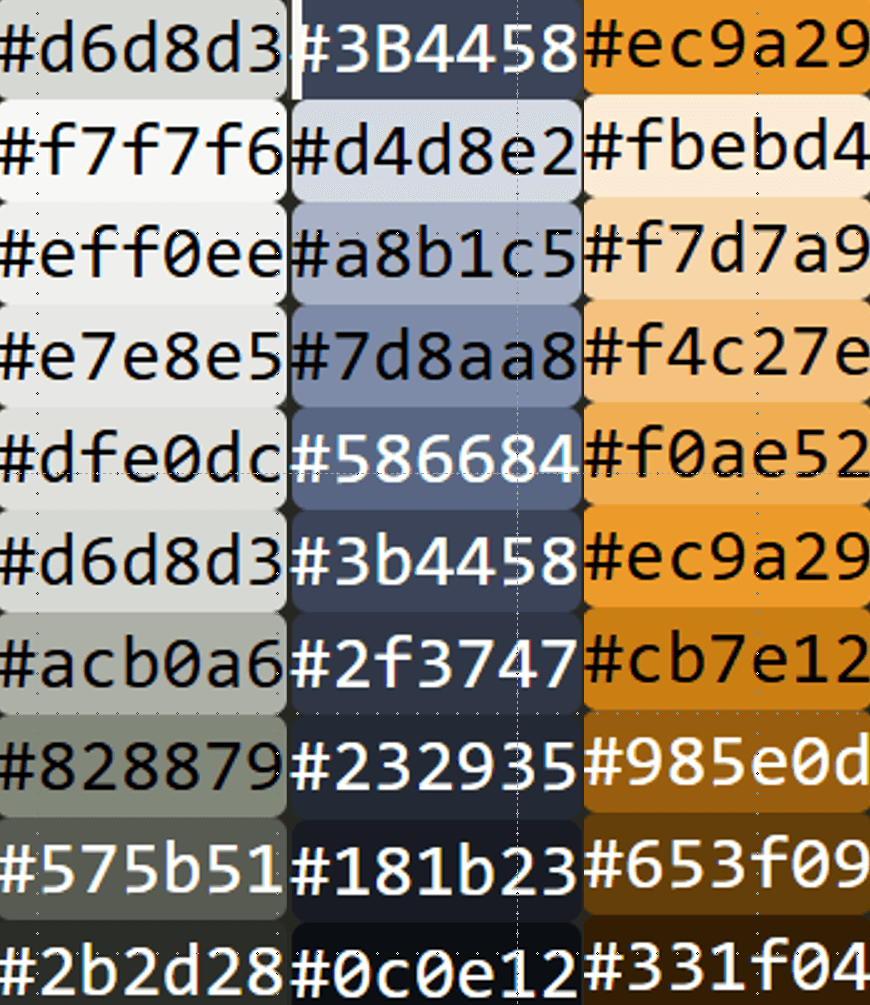
I tossed the image into Coolors to grab my main colors. I also added a gamboge for highlights, but I’ll keep it to a minimum since it doesn’t quite fit the elegant vibe I’m going for. I might make use of shaders to mimic the wrinkles of the cloth, and hopefully brings out the clean and elegant vibe.
The three major color:
Timberwolf: #d6d8d3
Charcoal: #3B4458
Gamboge: #ec9a29
Making sure it looks right
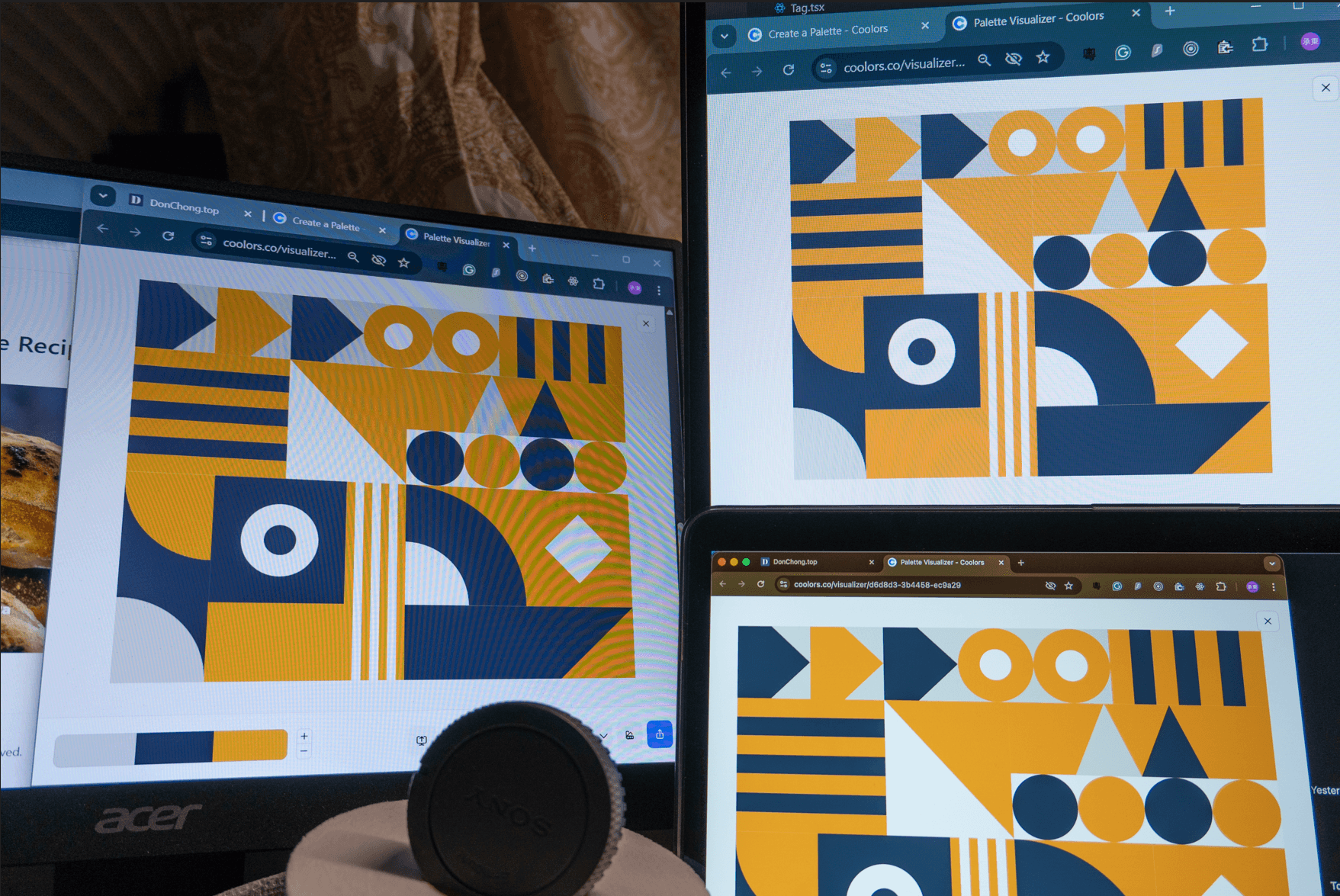
Since my Eye-Care monitor shows an obvious green-yellow tint and my portable monitor is not much better, my best option is to rely on the MacBook as a reference. It is not perfect, but its color accuracy is generally trusted and more than enough for building my personal site. I turned off True Tone, set the brightness to maximum, and adjusted the typography color configs and key elements to my preference.
Picking Color to my preference
Background
After comparing with charcoal-800, I still like the original better. Funny how often that happens in design and programming.tg
I added --color-charcoal-850: #12151B as my dark theme background color, I found it impossible to replicate the feeling of the reference image it include a variety of blues with light and shader, this is the color a half step lighter than too dark.
Links
When you’re including a link in a block of otherwise non-link text, it’s important to make sure that the link stands out and looks clickable.
-- Refactoring UI
Although using gamboge is nice and sharp, but I want to keep the theme as clean as possible.
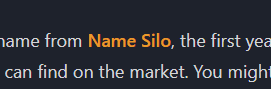
I tried using charcoal-200 for links instead of gamboge, It is a little hard to differentiate.
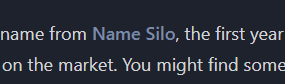
So I took OpenAI documentation approach, adding underline to indicate the link is clickable.
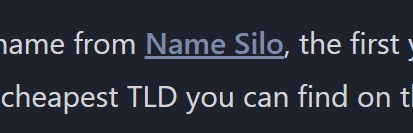
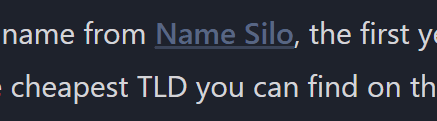
By comparing this and OpenAI documentation, mine is somehow brighter than it should be. The underline is taking too much attention and brighten the word. The underline should be a step dimmer than the link.
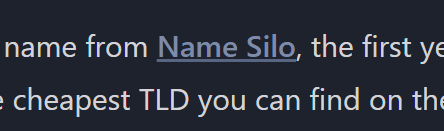
And the same also works for hover and bright theme
Using Images
Bad photos will ruin a design, even if everything else about it looks great.
-- Refactoring UI
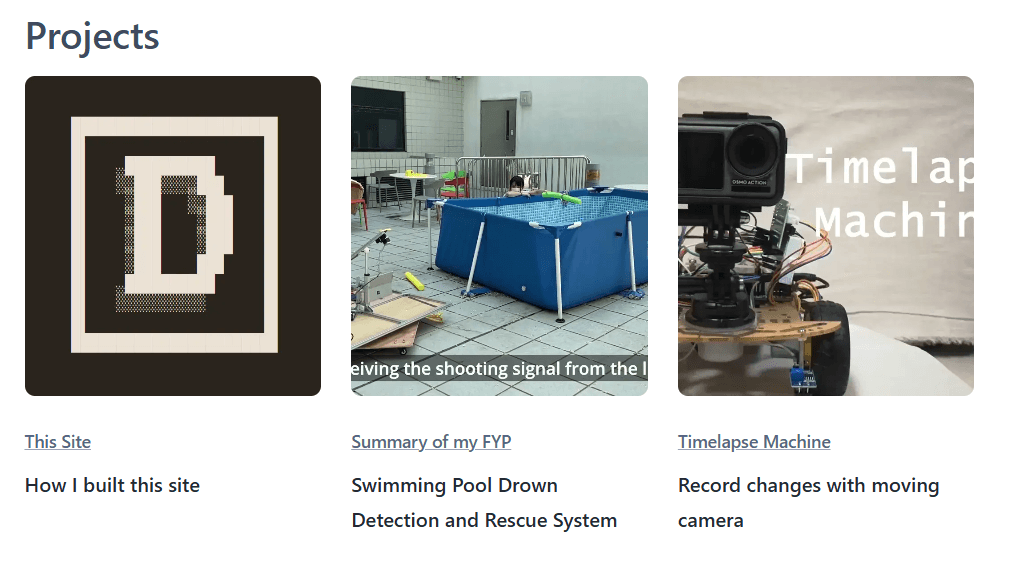
The photos for my projects had inaccurate white balance, or the scenes themselves weren't perfectly neutral. This made my homepage look messy and unprofessional. I adjusted the image's white balance, and this little tweaking gives a much cleaner vibe.
Code Blocks
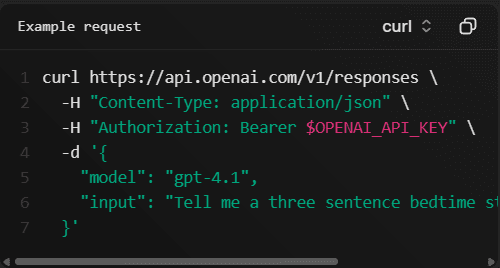
While inspecting OpenAI’s documentation closely, I noticed subtle color bands in their code blocks. I might be able to use the same technique to give my site some shadows and a folded texture.
The CSS they use is background-image: linear-gradient(45deg, rgba(0, 0, 0, 0.4) 0%, rgba(0, 0, 0, 0.2) 100%) which create a artificial color band effect.
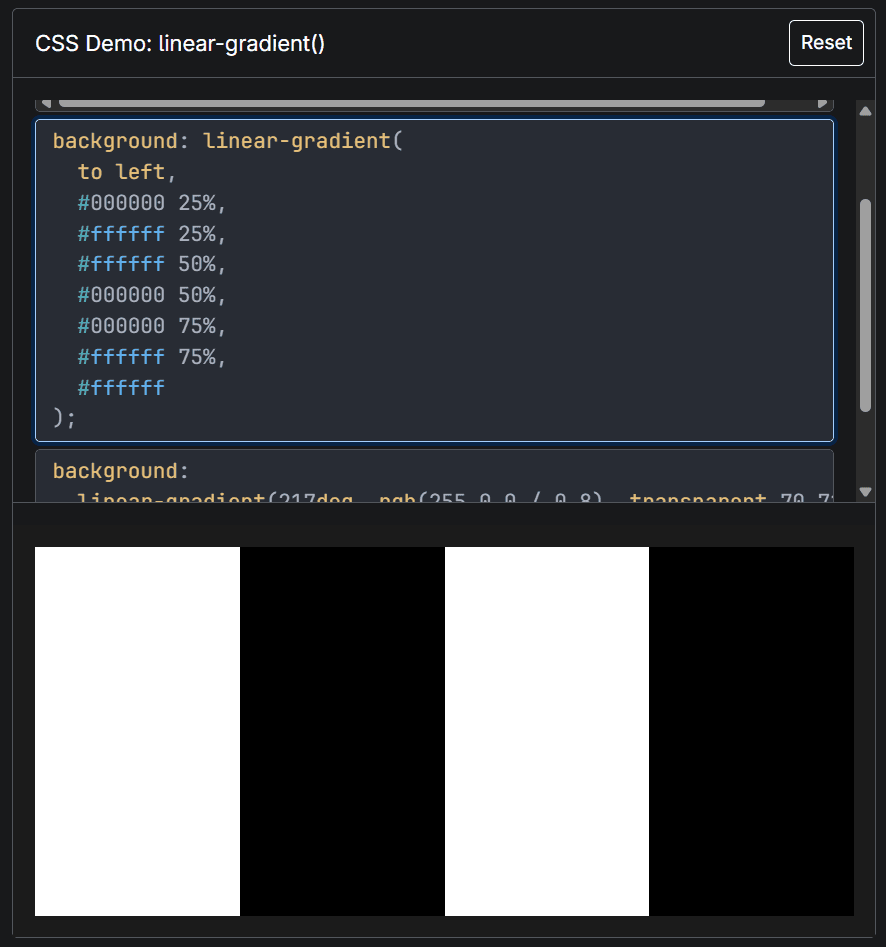
After learning a bit about linear-gradient, I found a way to create controllable color bands.
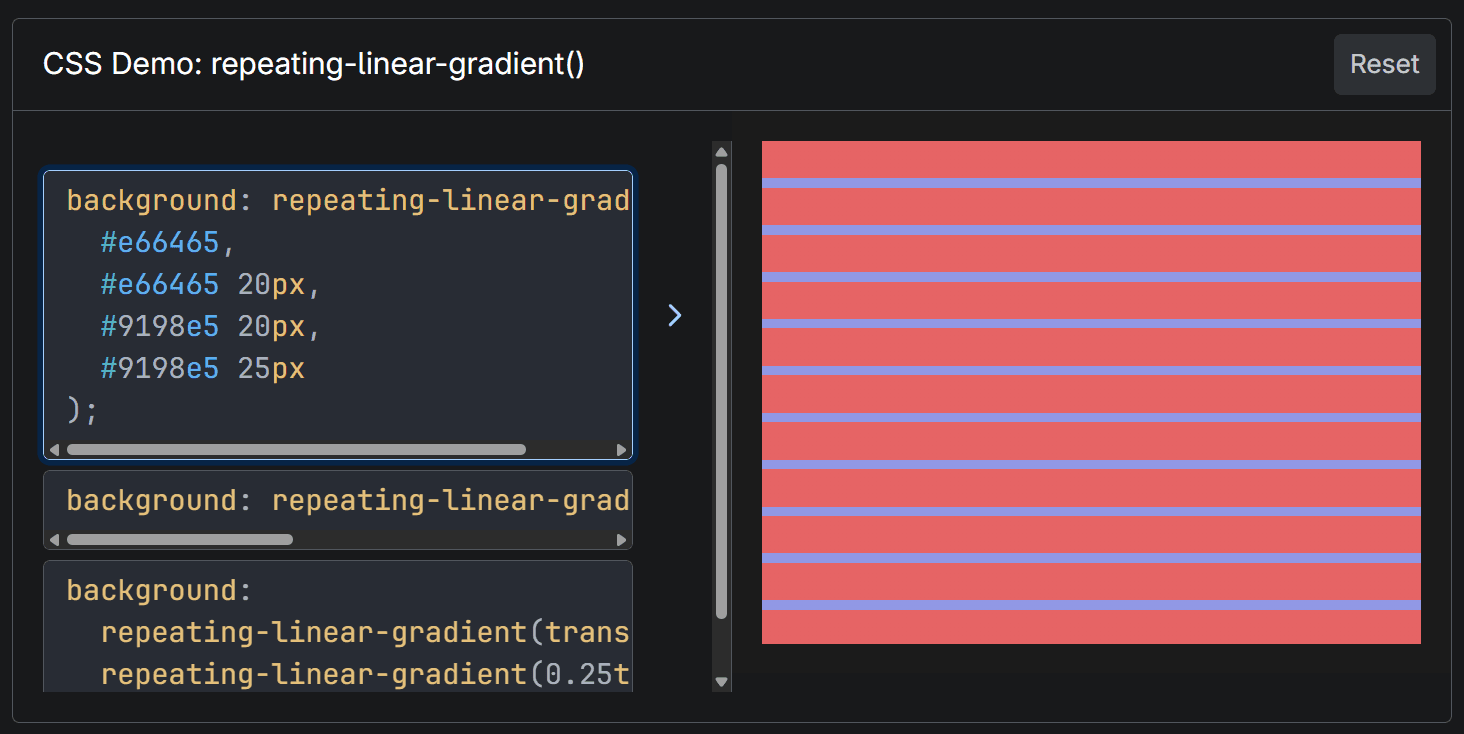
For in my case I can just use repeating-linear-gradient
Making sure readability
WCAG is a set of guidelines that help make websites accessible for people with disabilities. I’m not aiming to meet every requirement, but many of the guidelines also point toward strong website design in general. There are plenty of tools to check compliance, and one key area is color contrast. This ensures that most parts of the site meet contrast standards for better readability.
There are many tools to help check the contrast of the site, I use a Chrome plugin Accessible Web Helper check is there any bad designs.
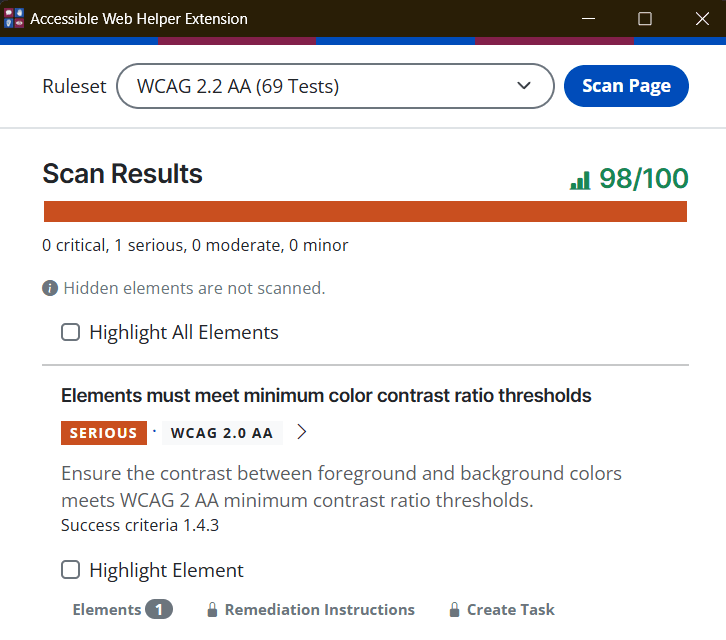
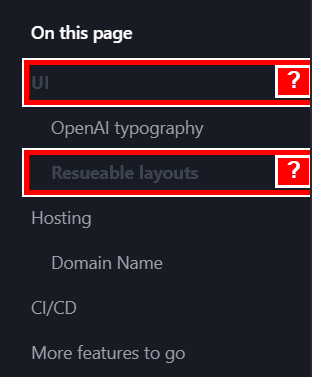
It also highlight the problematic element, which makes it easy to locate and fix the problem. Such as here I forgot to assign a color for dark theme Table Of Content.
Logo
I started by creating a simple logo using favicon.io.
Version 1
I quickly combined a few elements to see how they worked together. The “D” and “Don” felt redundant, and the icon didn’t have enough contrast in light mode.


Version 2
Next, I paired my name with the icon. It looked better, but still not quite right.

Version 3
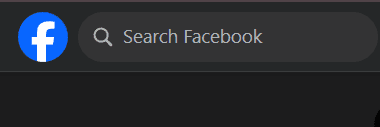
I studied how other brands use single-letter icons, like Facebook and LinkedIn. Most either drop the full name or go for a completely different design. I decided to keep only the D.



Version 4
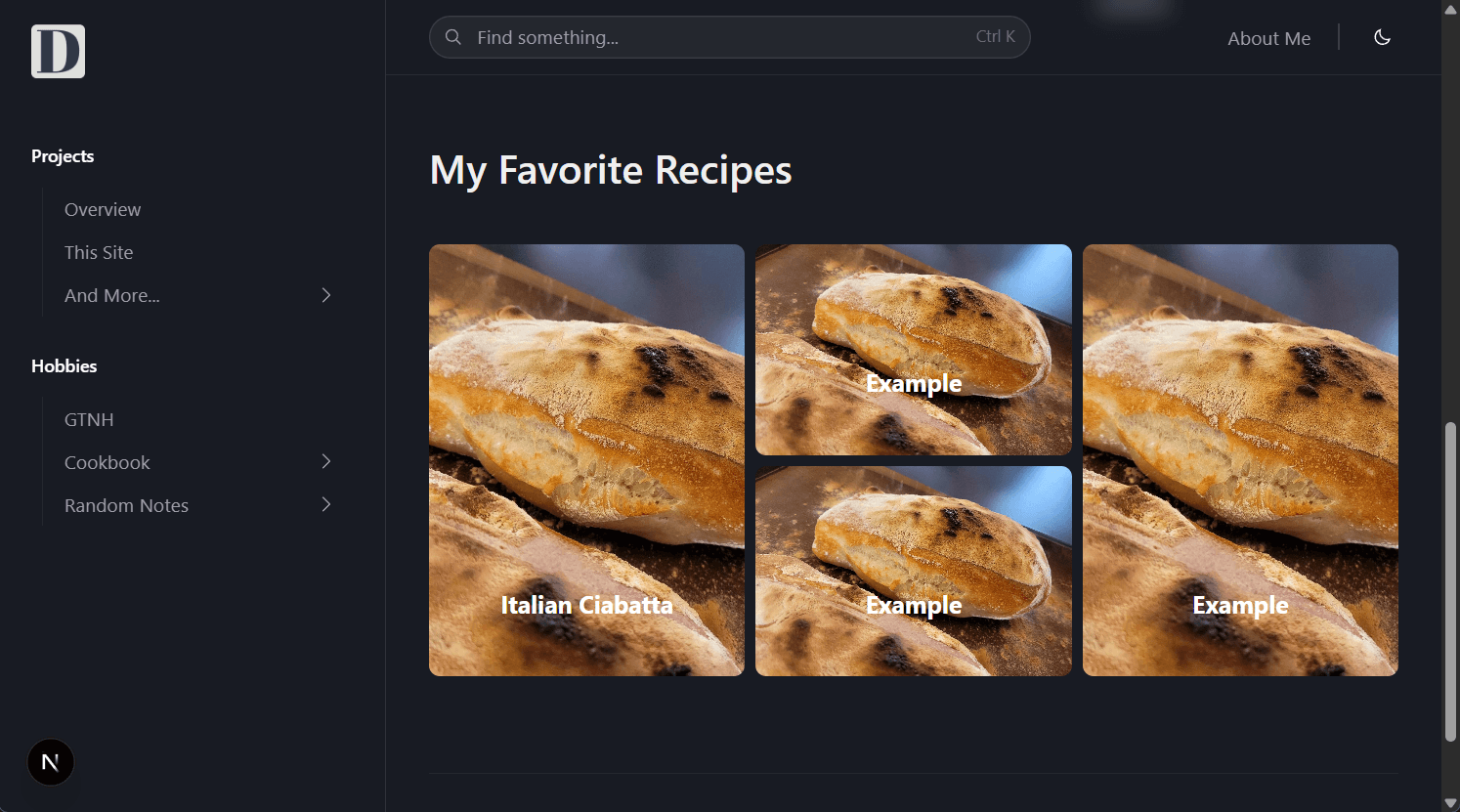
I refined the proportions and made both light and dark versions. The white one still looked a bit muddy.
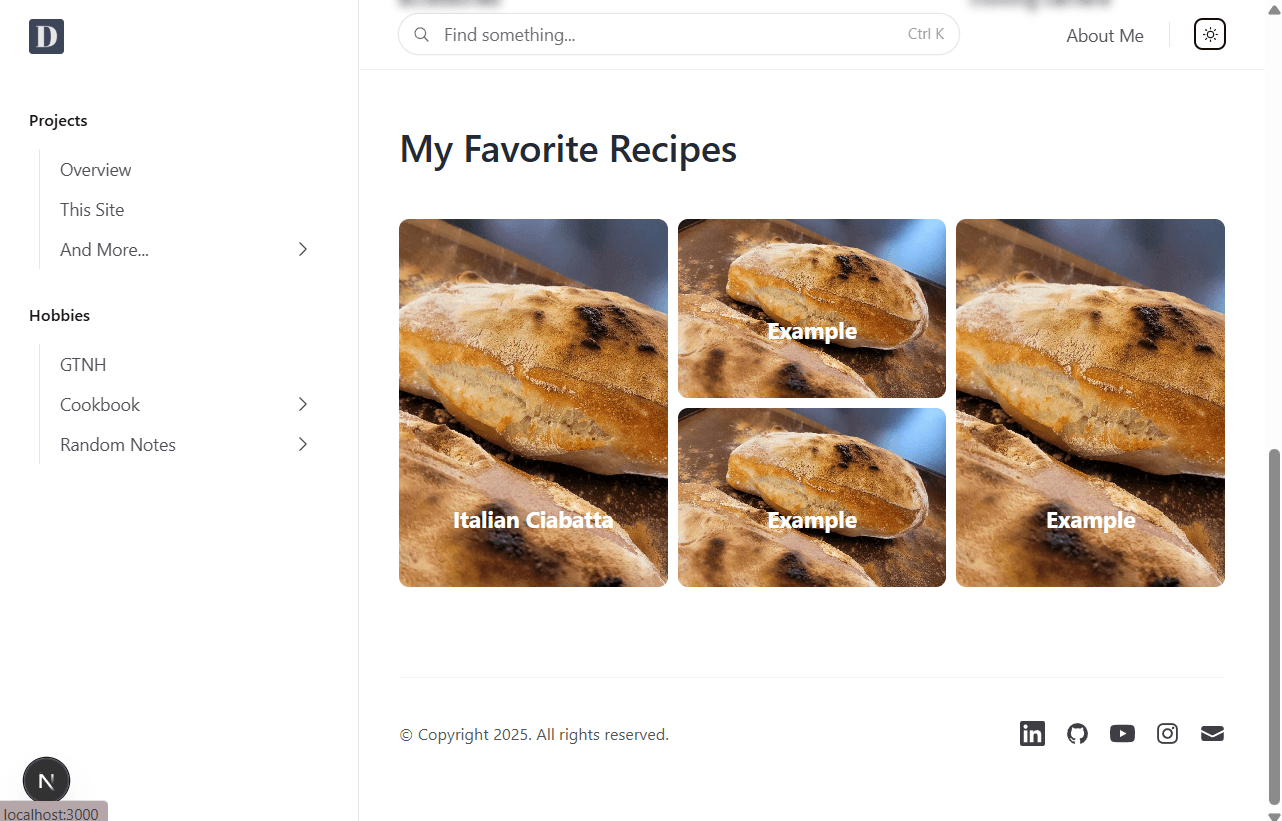
Version 5
I rebuilt the icon in SVG for sharper scaling and easier adjustments, then tuned the colors. (Left: New, Right: Old)

The two squares started to remind me of the WIRED logo, so I turned DON into a wordmark.

It looked playful, almost like the emoji version “🅳🅾🅽,” so I removed the rounded corners.

At this stage it felt solid, but the “N” in Abril Fatface looked unbalanced.

I thickened the “N”, but the serif still felt off. It might need a different font altogether.

In the meantime, I tried a few abstract takes on “DON,” but none captured the right feel.


After searching many font, I couldn't find one gives the same vibe. So I customized the font myself. After several rounds of tweaking, I reached a final version I’m happy with.

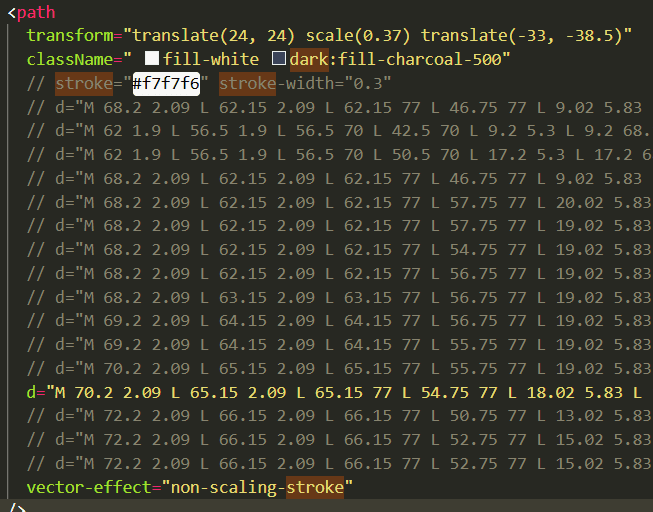
A few weeks later, I came across the BBC icon. No wonder the icon felt familiar somehow. Reinventing the wheel can be fun.

Interface
The site’s foundation comes from Tailwind's Protocol template, which I customized and built upon.
Nav
The default navigation doesn’t support submenus—it just nests markdown headings as sub-elements. That works fine for documentation sites like OpenAI’s, but I needed a cleaner, more flexible structure. I redesigned the navigation into a dropdown menu with two levels of categorization, making it easier to organize topics while maintaining a clean interface.
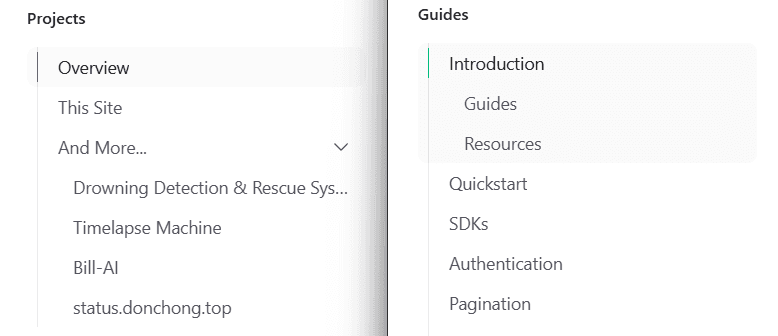
Table of Contents Design
Cloudflare
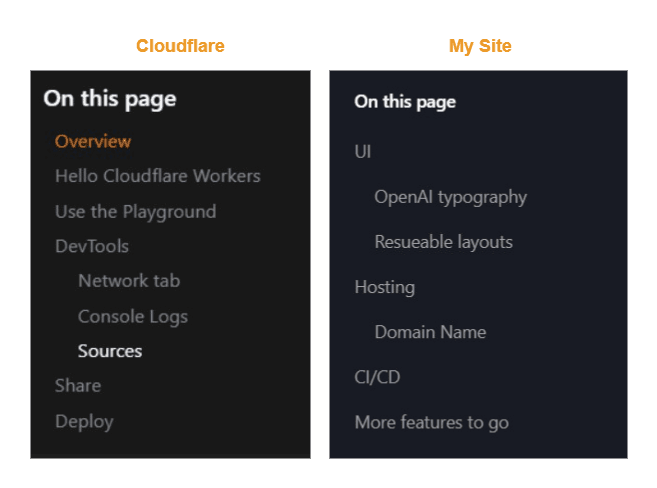
Since the new nav menu makes single-page navigation less intuitive, I added a two-level table of contents on the right side of the page, inspired by Cloudflare’s documentation layout.
OpenAI
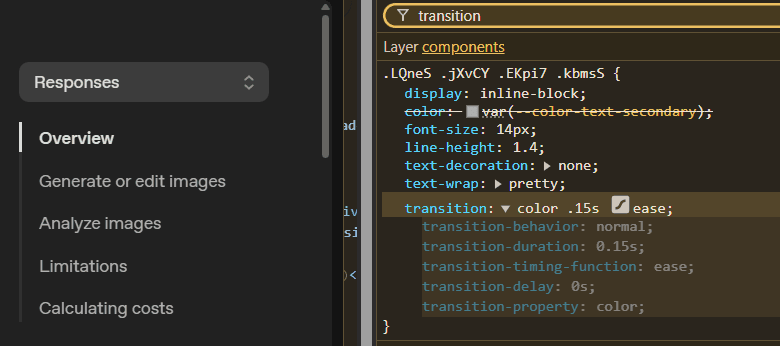
When I compared my table of contents with OpenAI’s, I noticed theirs felt smoother because of the transition animation. I added a similar effect to improve the flow in my design. I also introduced a vertical indicator, which makes the two-layer table of contents more organized. Finally, I removed the side border, since the rail already highlights the table of contents effectively, resulting in a cleaner, simpler look.
The first draft and the refined comparison:
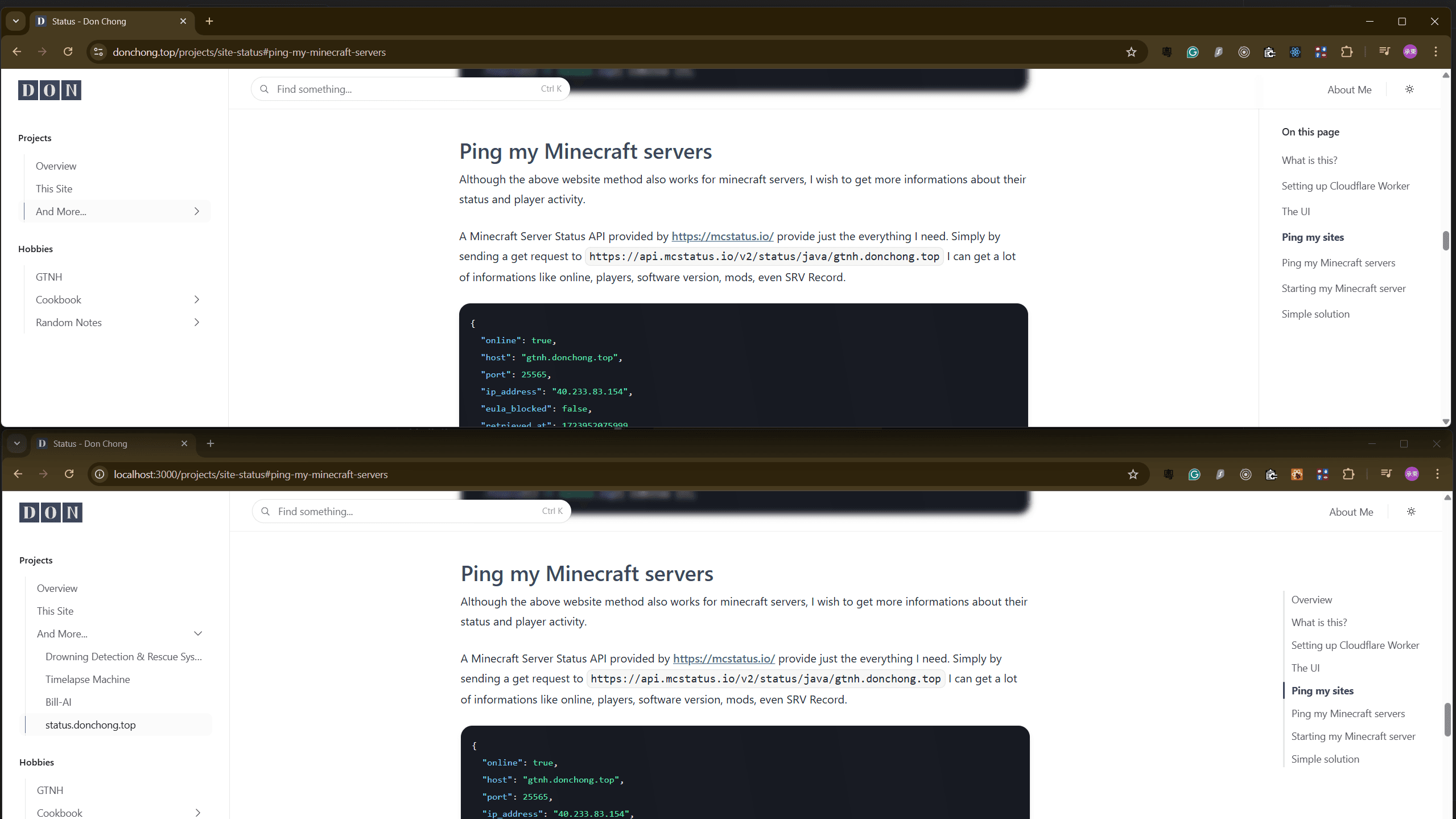
I positioned the table of contents to the right of the main content, which looks better on wide screens.

Image Optimization in Next
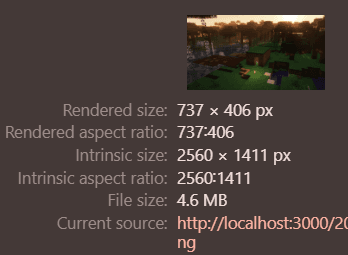
The mdx syntax ![] will render a simple <img> tag and result in a image 4.6MB in size. Which takes significant amount of time to load even with fast 4G.
Why use next/image
Next JS provide a easy way to optimize images, it will do the follows:
- Convert the image into WebP automatically, it has smaller file size and faster in website loading
- Use
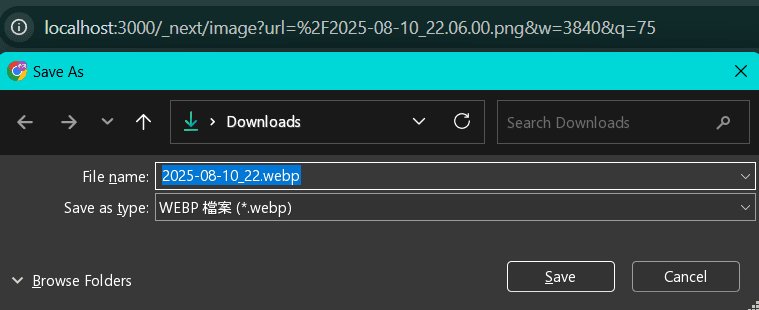
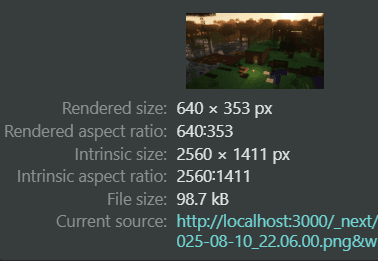
srcsetautomatically, provide difference size of image for the UI. The intrinsic size of the image is 2560 x 1411 (98.7kB), and it render as 640 x 353 (0.2 kB).
How to use next/image
Include 'next/image' and use it like an <img> tag.
import Image from 'next/image'
...
<Image src="/profile.png" width={500} height={500} alt="Picture of the author" />
Mind its a bit different for tis props:
widthandheightare the intrinsic image size in pixels, not the display size of the image. They hints the aspect ratio to prevent cumulative layout shift.Sizesdefine the render size at different breakpoints.
Blur placeholder when loading
placeholder="blur" will render a blur image when the actual image still loading.
If the image is from static import, blurDataURL is not needed.
import img from '/src/images/GTNH/2025-05-27_15.49.00.png'
...
<Image src={img} alt="" width={2560} height={1440}  placeholder="blur"/>
Result:
For images from the public folder:
<Image src="/2025-08-10_22.06.00.png" alt="" width={2560} height={1440} placeholder='blur' blurDataURL='data:image/png;base64,iVBORw0KGgoAAAANSUhEUgAAAAgAAAAECAYAAACzzX7wAAAAkElEQVR4AQCEAHv/AnpgR/+RdVf/o4Ri/5yCYf+Yf2D/nohu/52HbP9zXkP/ArrH1ACsuMoAkqW7AJamuQCPqbIAfZGcAH+OnACptcUAAvf+BgDo7fEA7vDwAPn79wAIAgQA/AgHAPwNBwD6BAMAAu359ADyB/8A+BEFAAEZBwABFgYABgIHAP3+AAD7+wUAAAAA//95TSSpAAAABklEQVQDAGoOOsfIzthpAAAAAElFTkSuQmCC'/>
Result:
The official site recommended joe-bell/plaiceholder: Beautiful image placeholders, without the hassle. to generate blur images. I think it needs an extra wrapper to make the code nice, otherwise it is too dirty.
Positioning <Image />
Make it responsive
Styling it with width: 100% and height: 'auto' will change the image size dynamically.
<Image
  src="/2025-08-10_22.06.00.png"
  alt="A dirt house in Minecraft"
  width={2560}
  height={1440}
  className='w-full h-auto'
/>
Scaling the image
<Image
  src="/Pasted%20image%2020250812201622.png"
  alt="Seagram Building"
  width={800}
  height={1200}
  className='w-1/2 h-auto'
/>
Improvements
The mdx component ![] should be able replaced with <Image />, however the width and height are mandatory, so it take a bit extra works. Maybe pairing it with sharp for obtaining image size and placeholder for blurring effect is the way to go. Will come back later as a future improvement.
Automatic Static Image Import
Added on: 2025-10-06
I ran into three annoying problems when working with images in Next.js:
- Images must explicitly define
widthandheight. - The blur placeholder need
blurDataURLwhen using URL or path import - Image paths in the
publicfolder get messy fast.
To clean this up, I decided to:
- Import images statically instead of by path.
- Give each page its own
imagesfolder, matching my Obsidian file structure.
When images are imported statically, Next.js automatically detects their dimensions and generates blur placeholders natively — no manual setup required.
First Attempt
Initially, I wrote a small script to auto-import every image inside a folder and store them in an img object:
In test/images/img.tsx:
const imageContext = require.context('', false, /\.(png|jpe?g|svg|gif)$/);
export default imageContext.keys().reduce((acc, path) => {
  const key = path.replace('./', '');
  acc[key] = imageContext(path);
  return acc;
}, {});
Then I could use it like this:
In test/page.mdx:
import img from './images/img'
<Image src={img['follow2.png']} />
This worked fine — it was simple and automatic. But having the same import script in every folder felt repetitive and messy.
The Helper Script
So I made a central helper to handle it globally:
src/lib/imgMap.js
// Collect every image under /content/**/images/
const allImages = require.context('../app', true, /images\/.*\.(png|jpe?g|svg|gif)$/);

/**
 * Returns static images from './image' folder
 * ├───test
 * │   │   page.mdx
 * │   └───images
 * │           follow2.png
 * │           img.tsx
 * @param {string} mdxUrl - Pass `import.meta.url` from the MDX file
 */
export function getImageMap(mdxUrl) {
  const match = mdxUrl.match(/\/app\/(.*)\/[^/]+$/);
  const pagePath = match ? match[1] : null;
  if (!pagePath) {
    console.warn(`Could not determine page path from ${mdxUrl}`);
    return {};
  }

  const prefix = `./${pagePath}/images/`;
  const map = {};

  allImages.keys().forEach((key) => {
    if (key.startsWith(prefix)) {
      const filename = key.replace(prefix, '');
      map[filename] = allImages(key).default;
    }
  });

  return map;
}
Now, in test/page.mdx:
import { getImageMap } from '@/lib/imgMap'
export const img = getImageMap(import.meta.url)

<Image src={img['color.png']} alt="Logo" placeholder="blur" />
Result
- No need to specify
widthandheightmanually. - Native blur placeholders just work.
- Clean image organization per page.
Custom syntax ![[]]
The first thing I tried was modifying the MDX image component — only to realize that ![]() can pass only strings as the src parameter.
In my setup, images are statically imported and stored in an img object, which can’t be directly passed as a src.
To solve this, I built a remark plugin that parses the Markdown AST and transforms expressions like  into a proper Next/Image component right inside the MDX.
 {/** ✅ Converted into <Image /> */}
 {/** ❌ Rendered as plain text */}
 {/** ✅ Converted into <Image /> */}
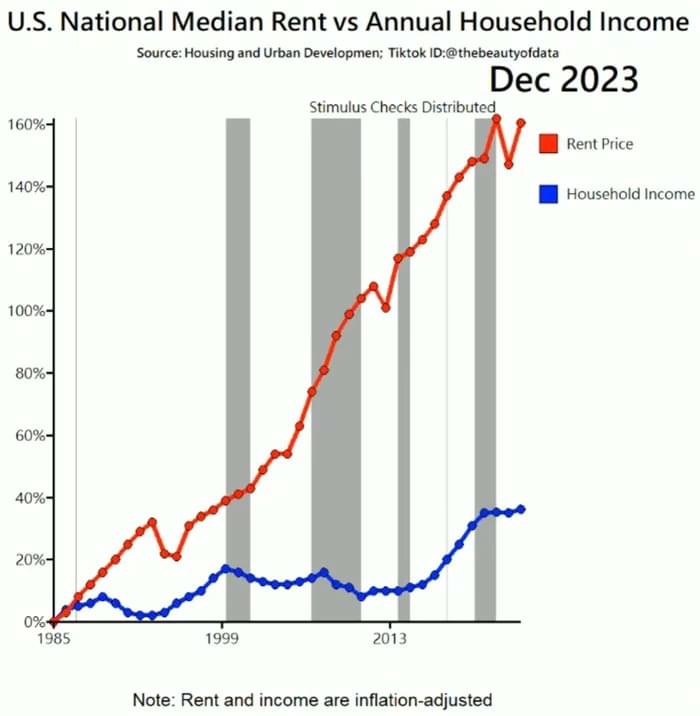 {/** ✅ Handled by default MDX logic */}
Now, my mdx is more clean and next/image's benefits still applies, but with the following limitation:
- Filename must not contain empty spaces
img[]is still not native syntax, I cannot simply copy my obsidian notes over.
After realizing Obsidian doesn’t use standard MDX syntax, I found I had more flexibility. I now convert all ![[imgsrc]] references into my next/Image format with Remark, and it works perfectly.
Back End
Simple CI/CD with GitHub Actions
-
Add SSH secrets in GitHub
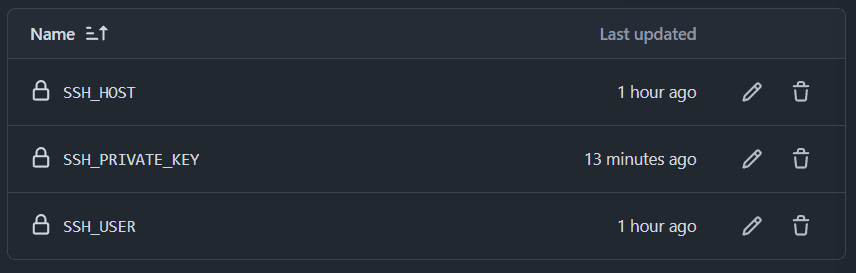
-
Configure
.github/workflows/deploy.yml
You can grab a template online or let AI generate one for you. The file tells GitHub Actions:-
When to run – e.g., on push to a branch, or on a schedule.
-
What to run – build, test, deploy. Basically anything you’d run in your terminal can go here.
-
-
Push changes to the branch
That push triggers the workflow.
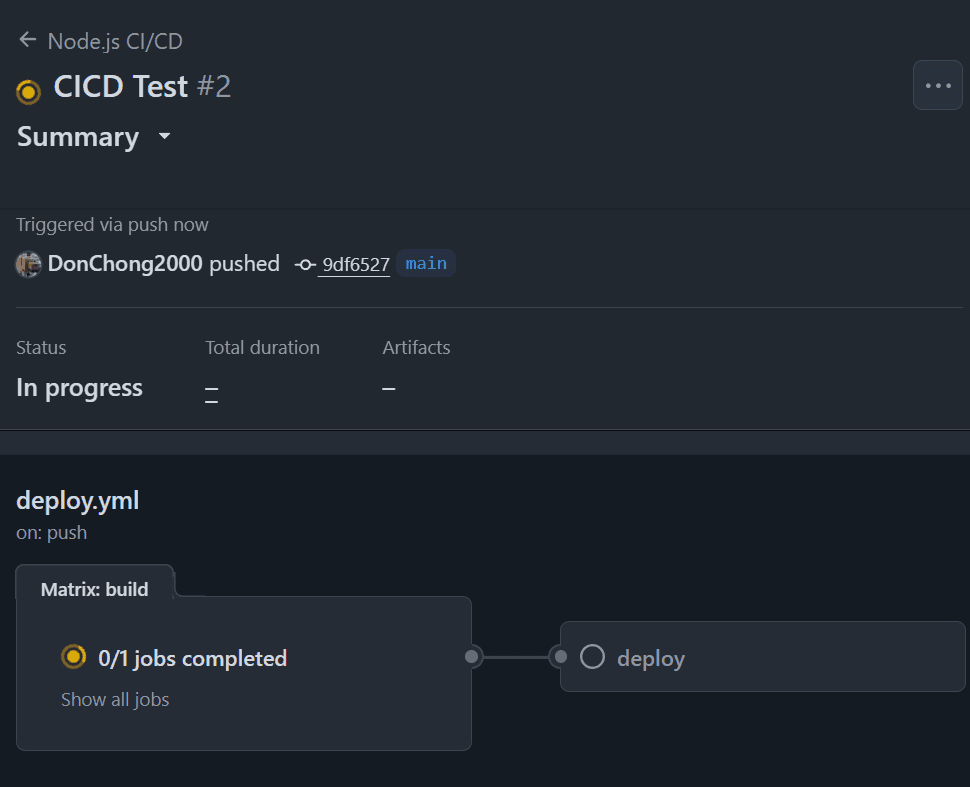
-
Fix config issues as they pop up
Usual suspects: SSH key permissions, pm2 command not found due to path problem, etc. Once sorted, the pipeline runs clean.
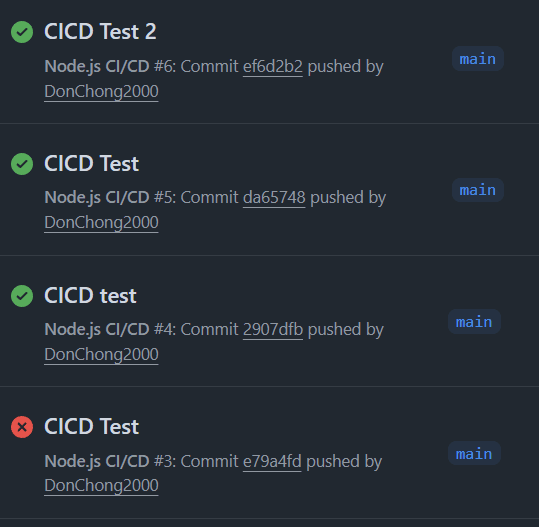
-
Done: automated deployment
Every push tomainnow builds and deploys straight to the server.
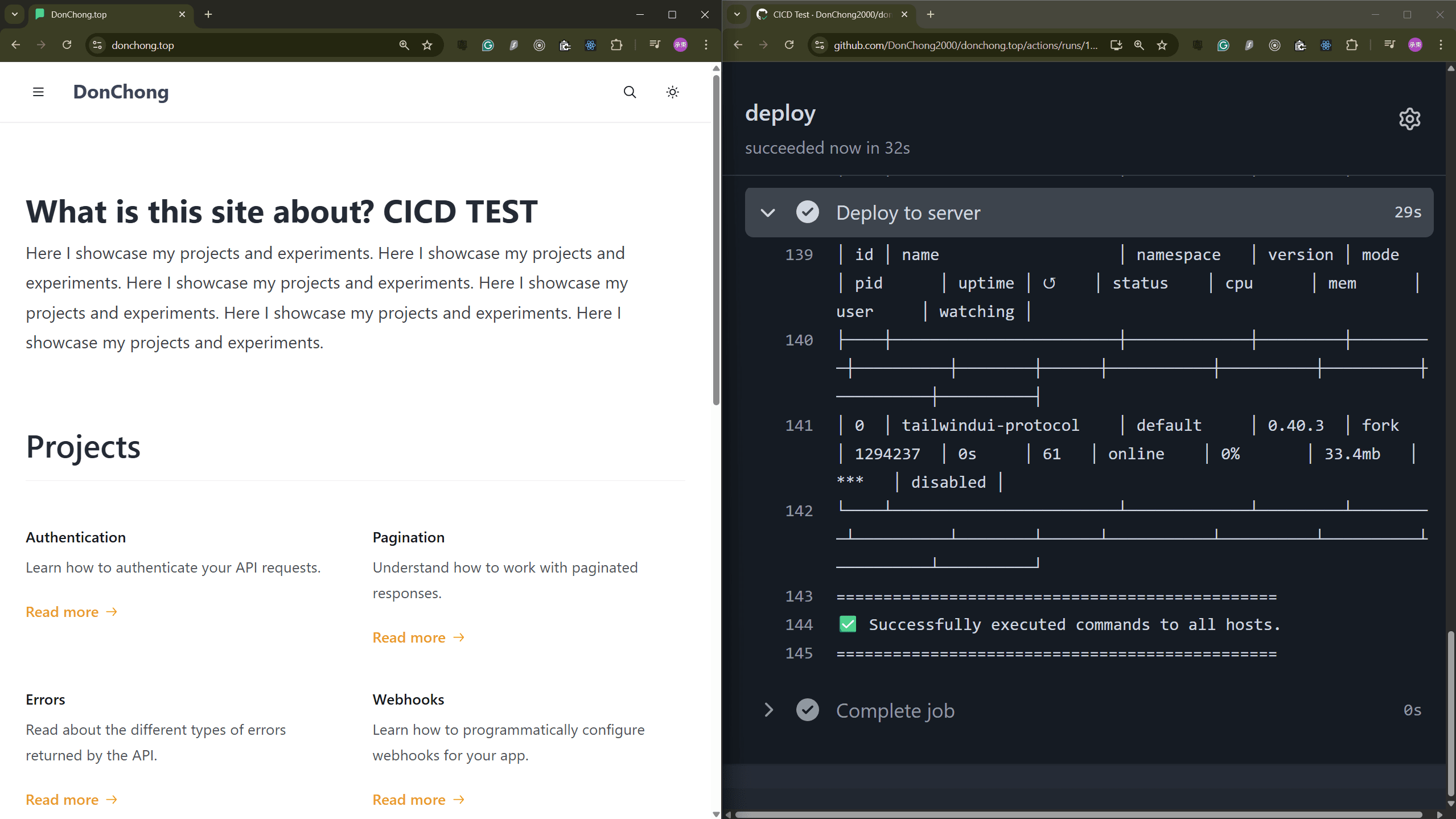
Host and Network
Bugs
- Large Image are not supported
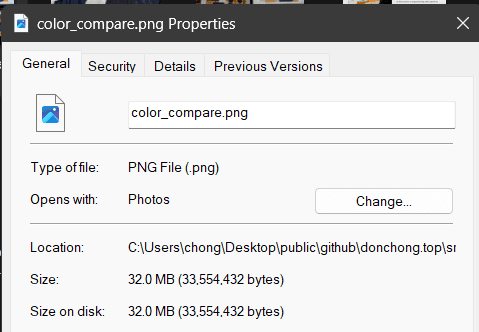
Fixed Bugs
Google Translate Causes Errors
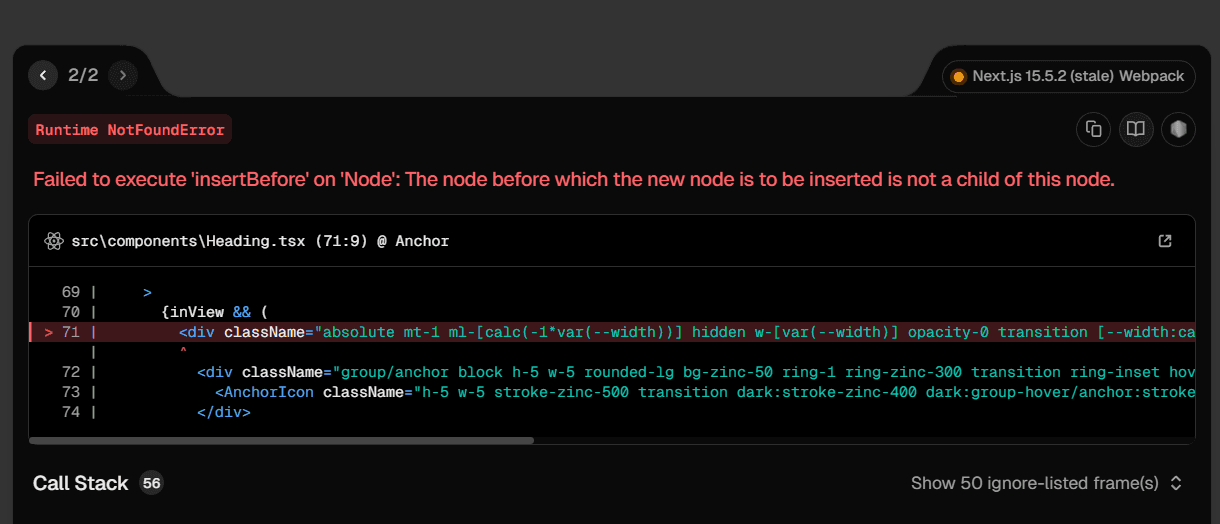
When translating the site using Google Translate, the following error appears. The same issue also occurs on protocol.tailwindui.com.
After some research, I found a solution in this Stack Overflow post.
By adding translate="no" to the site’s anchor, Google Translate is prevented from interfering with the DOM structure, which resolves the problem.
Long string and code block lead to layout shift on phone
Adding break-word property and fixing minor layout mistake fixes the problem.