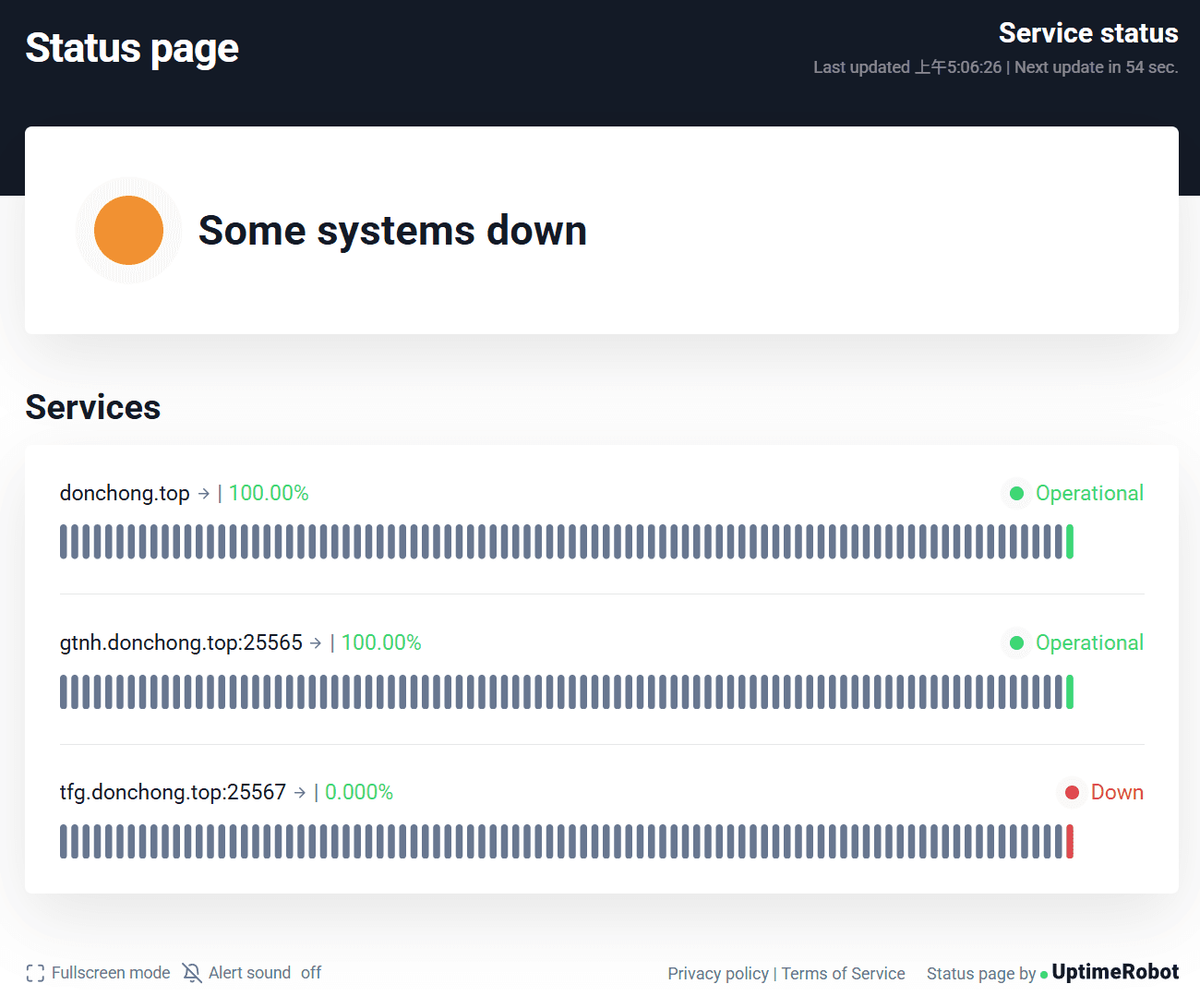
status.donchong.top
#cloudflare #automation #fullstack #restful
If you want to monitor your site and services, use UptimeRobot.
What is this?
status.donchong.top is my simple cloudflare worker site that shows the status of my personal website and services, and also provides a button to start my Minecraft server when I want to play with my friends.
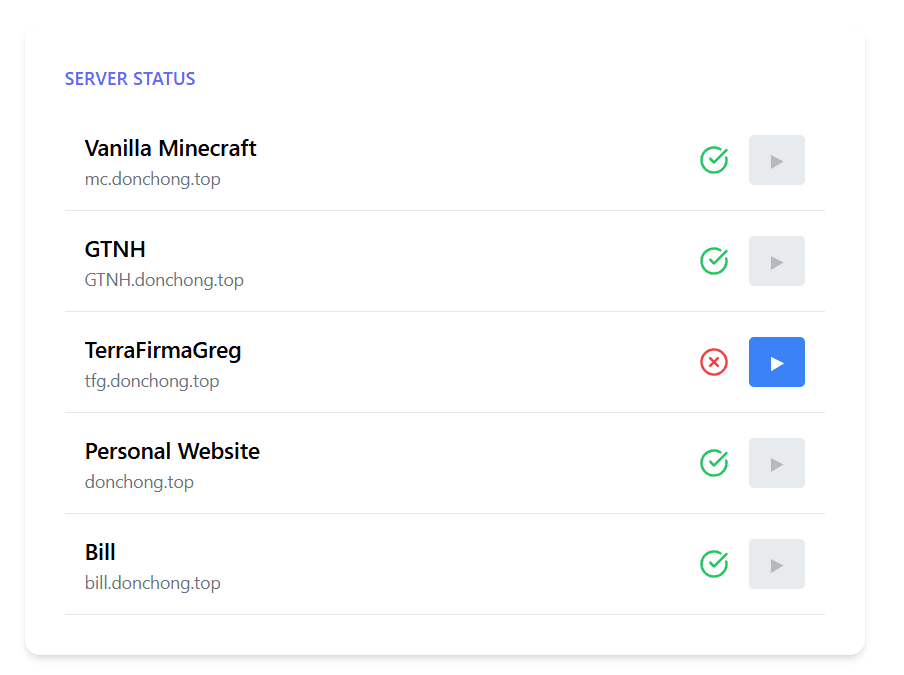
Setting up Cloudflare Worker
I want a site that never goes down, mainly to show my site and service status. For that, I plan to use Cloudflare Workers. Before building the real thing, I decided to test the idea using Bill-AI. That project is just a static site that converts a JSON object into a table I can copy into Excel. My goal is to replace it with a worker as a test run.
I followed this guide to kickstart a Cloudflare worker site.
Problems with Cloudflare
At first, npx wrangler deploy didn’t work, so I tried npx wrangler publish instead.

At of 2025-08-29, this problem is solved.The issue came from the default
Wrangler install being outdated. Running npx wrangler --version, you will get
0.0.30 for some reason which is a very old version. To update it, simply run
npm install wrangler@latest
Many Cloudflare's example are using old syntax, which cause a lot of troubles. Check the Migration Guide to see how to update your code if you have the same problem. This is also mentioned in a GitHub Issue.
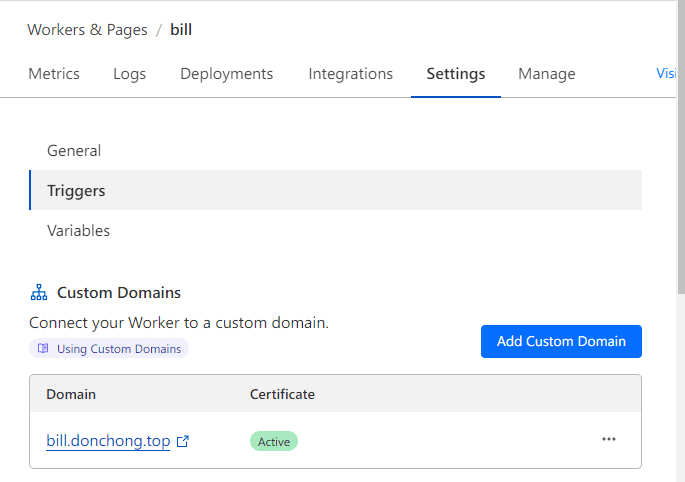
Then I set up a custom domain in the settings:
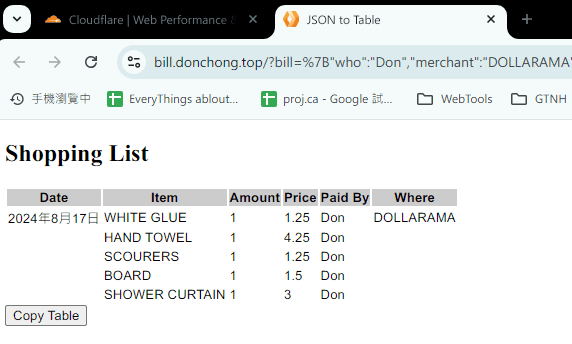
After I updated the prompt in my Bill-ai project and flushed DNS caches, now Bill-AI is online!
- Chrome: chrome://net-internals/#dns
- Windows Command:
ipconfig /flushdns
Ping my sites
By referencing this article, its very easy to check for internet connectivity in Node.js.
const { createConnection } = require('net');
function checkTCP(host = 'mc.donchong.top', port = 25566) {
  return new Promise((resolve, reject) => {
    const client = createConnection({ host, port }, () => {
      console.log(`TCP connection established on port ${port}`);
      client.end();
      resolve();
    });
    client.setTimeout(1000);
    client.on('timeout', (err) => {
      console.error(`TCP connection on port ${port} timed out`);
      client.destroy();
      reject(err);
    });
    client.on('error', (err) => {
      console.error(`Error trying to connect via TCP on port ${port}`);
      reject(err);
    });
  });
}

let isOnline;
checkTCP()
  .then(() => (isOnline = true))
  .catch(() => (isOnline = false))
  .finally(() => console.log({ isOnline }));
Ping my Minecraft servers
Although the above website method also works for minecraft servers, I wish to get more informations about their status and player activity.
A Minecraft Server Status API provided by https://mcstatus.io/ provide just the everything I need.
Simply by sending a get request to
https://api.mcstatus.io/v2/status/java/gtnh.donchong.top
I can get a lot of informations like online, players, software version, mods, even SRV Record.
{
  "online": true,
  "host": "gtnh.donchong.top",
  "port": 25565,
  "ip_address": "40.233.83.154",
  "eula_blocked": false,
  "retrieved_at": 1723952075999,
  "expires_at": 1723952135999,
  "srv_record": {
    "host": "gtnh.donchong.top",
    "port": 25566
  },
  "version": {
    "name_raw": "1.7.10",
    "name_clean": "1.7.10",
    "name_html": "<span><span>1.7.10</span></span>",
    "protocol": 5
  },
  "players": {
    "online": 0,
    "max": 20,
    "list": []
  },
  "motd": {
    "raw": "GT:New Horizons 2.6.1",
    "clean": "GT:New Horizons 2.6.1",
    "html": "<span><span>GT:New Horizons 2.6.1</span></span>"
  },
  "icon": "data:image/png;base64,iVBORw0KGgoAAAANSUhEUgAAAEAAAABACAYAAACqaX (...10.6 kB)",
  "software": null,
  "plugins": [],
  "mods": {
    "name": "so many mods it take too much space",
    "version": "I got 300 mods"
  }
}
Starting my Minecraft server
This function is currently shutdown, as we are not playing it now.
When I played TFG Modpack with friends, food would spoil if the server stayed up 24/7, so I needed a way for them to start it only when they wanted to play.
As I am learning Cloudflare and following the theory of 'the more you f**k around, the more you know'. I went for an unnecessarily over-engineered approach. This part is just for fun at this point, the code here are more of a proof of concept and for experimentation.
First, When I click the start button on my site, it will send a request PUT request to a my api.donchong.top worker.
export async function onRequest(context) {
  try {
    const fetchpromuse = await fetch(`https://api.donchong.top/v1/tfg`, {
      method: 'PUT',
    });
    const json = await fetchpromuse.json();
    return new Response(JSON.stringify(json));
  } catch (e) {
    // if (e === 'error code: 521') return new Response({error: 'error code: 521, My Oracle server is down!'});
    return new Response(JSON.stringify(`error: ${e.message}`));
  }
}
Then the api.donchong.top worker will forward the request to my Oracle Cloud Server.
    async PUT(path,request) {
        try{
            let serverRes = await fetch('https://test.donchong.top:8081/tfg', {
                method: 'PUT',
            })
            const contentType = serverRes.headers.get('content-type');
            let jsonResponse;
            if (contentType && contentType.includes('application/json')) {
                jsonResponse = await serverRes.json();
            } else {
                console.error('Response is not JSON');
                // jsonResponse = {error: 'Response is not JSON', contentType: contentType};
                jsonResponse = await serverRes.text();
            }
            return jsonResponse;
        }catch(e){
            return  {"Error in tfg": e.message}
        }
    }
Finally, my Oracle Cloud Server runs an express server that will receive the request and start the Minecraft server
app.put('/tfg', (req, res) => {
  res.setHeader('content-type', 'application/json');
  if (isTFGRunning) {
    return res
      .status(409)
      .json({
        success: 'false',
        message: 'TFG server has started or is starting.',
      });
  }
  const tfgDirectory = path.resolve(
    __dirname,
    '/home/ubuntu/Minecraft/TerraFirmaGreg/',
  );
  const tfgServer = spawn('sh', ['nodeStart.sh'], { cwd: tfgDirectory });
  isTFGRunning = true;
  tfgServer.stdout.on('data', (data) => {
    console.log(`stdout: ${data}`);
  });
  tfgServer.on('close', (code) => {
    isTFGRunning = false;
    console.log(`Shell script exited with code ${code}`);
  });
  res.json({ success: 'true', message: 'TFG server is starting!' });
});
Simple solution
After all the wheel reinventing, I met UptimeRobot, a free service that can monitor your site and services, and alert you when they are down, and give you a nice history dashboard. I believe this is all you need for most of the time.
It can monitor:
- HTTP / Websites
- Ping for a specific IP address
- Port (like a Minecraft server port)
- Keywords (check if a specific keyword exist in the website)